⏩ Quick start
Install and use Clemz on all your devices (computer, smartphone, tablet)
Install and use Clemz on all your devices (computer, smartphone, tablet)
Clemz is a Chrome extension that appears in your browser when you visit the Vinted website. To use Clemz, you’ll need to install it on Chrome (computer) or Quetta (Android device) – unfortunately, Clemz isn’t available on iPhone/iOS – and then access the Vinted website. Clemz doesn’t work on the Vinted mobile app.
The installation process for Clemz varies depending on whether you’re using it on a computer (PC, Mac, etc.) or an Android device. Below, I’ll explain how to install it:
To install Clemz on your computer (Windows, Mac, etc.), follow these steps:

For Android devices, follow these steps:

The Clemz extension appears automatically as soon as you visit the Vinted website (vinted.fr, vinted.be, etc.) from the browser where it is installed (Chrome on a computer, Quetta on Android).
Go to the Vinted website (e.g. https://www.vinted.fr), and you should see the Clemz extension displayed at the bottom left:


The first step is to log in to your Clemz account (if you don't have one, click here) in the Clemz window that appears on the Vinted website:
Once logged in, follow the instructions displayed on the home page ( tab) of the Clemz extension.

When you are logged into your Vinted account and on your closet page, Clemz will display the following button:

By clicking on Link Clemz to this Vinted closet, your free trial will begin and you will be able to use Clemz and its many features.
Clemz can work on different Vinted closets at the same time. The rules are as follows:
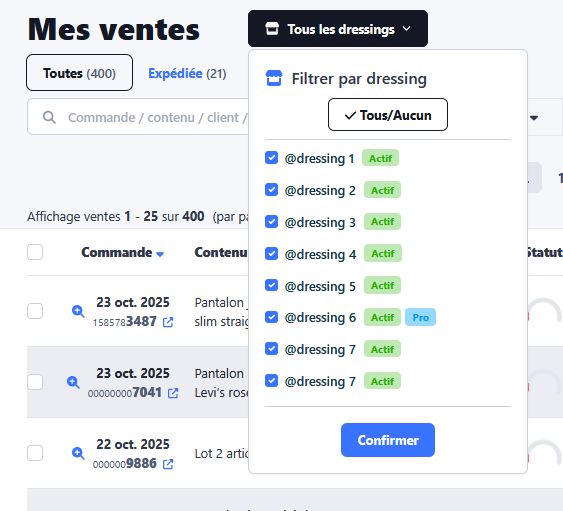
Once your closets are activated, you can filter your sales and activities by closet:
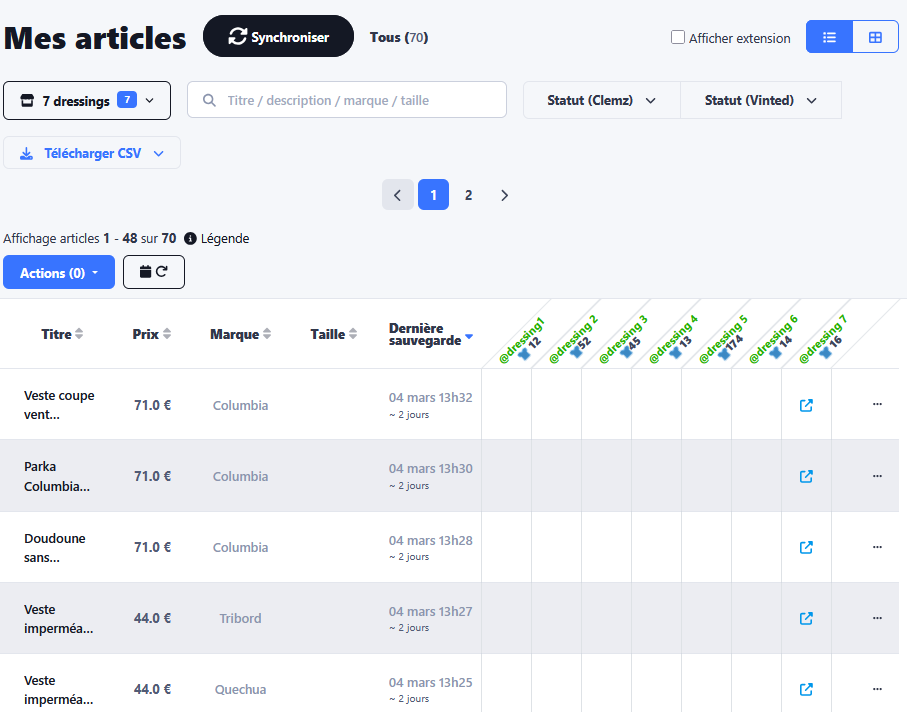
But also have a view of which saved items are in which closet:
To use Clemz on a new closet, start by connecting to that closet on Vinted.
Then, from Vinted, go to the extension's home page and click on the icon in the "Closets" section.
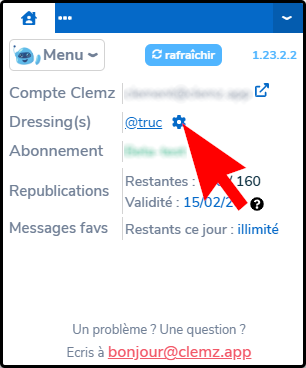
There you can:
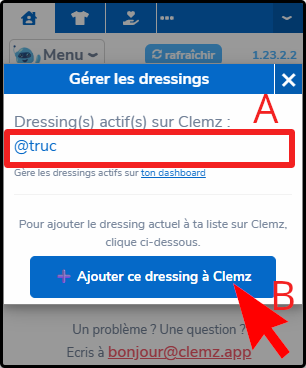
The new linked closet is not enabled by default. You need to go to Clemz to do this (see above).
In your Clemz account, go to Settings and look at the My Information section.
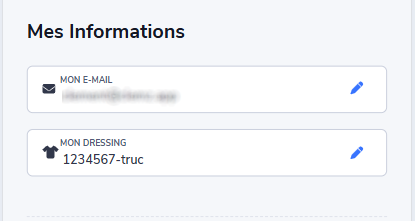
By clicking on ' ', you can access a pop-up window displaying your closets. Those that are activated are displayed with a green background, and you can activate the others using the 'activate' button, as shown in the image below:
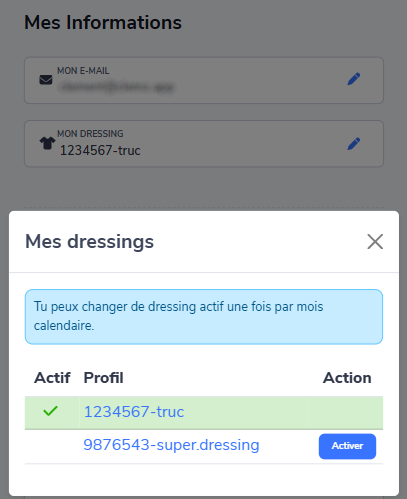
Once a new closet has been activated here, you can retrieve it on the extension by:
Want to add a closet to this list? Here’s how: click here
In some cases, particularly if your closet has been banned but Clemz doesn’t seem to recognise this, it may be useful to force an update of your closet information.
To do this, go to the extension’s homepage on the Vinted website and click the ‘ ’ icon in the ‘Closets’ section
If the Vinted closet you’re currently logged into is already active on Clemz, you’ll see a button appear saying “🔄️ Update this closet’s details on Clemz”
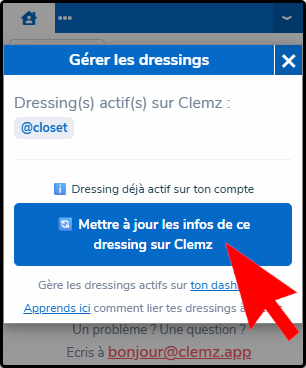
By clicking on this, the closet information will be sent to Clemz and, if he is banned, you can deactivate him without restriction.
Clemz offers several features that are detailed in this documentation:
Still need help?