💲Synchronise your sales
Synchronise your Vinted sales on Clemz to simplify tracking. Print your shipping labels in one go, analyse your performance, issue invoices, do your accounting, and more. We'll explain it all to you!
Synchronise your Vinted sales on Clemz to simplify tracking. Print your shipping labels in one go, analyse your performance, issue invoices, do your accounting, and more. We'll explain it all to you!
By importing your Vinted sales into Clemz, you will be able to benefit from several features and automations that will save you valuable time:
In addition, it is important to note that Vinted does not store all sales information indefinitely. After a few weeks, certain data is deleted from your Vinted account:
Synchronising them on Clemz ensures that you do not lose anything.
Whether it's to save time (tracking, shipping labels, invoices, accounting), improve your understanding of your business (analyses and graphs) and your customers, you have everything to gain by not leaving your sales information dormant on Vinted!
Before you can synchronise your sales, you need to tell Clemz if you have a PRO account on Vinted.
Go to the Settings page of the "Sales" module by clicking on "My sales" then "Settings". All you have to do is tell Clemz if you have professional status on Vinted (on at least one of your closets to be synchronised).
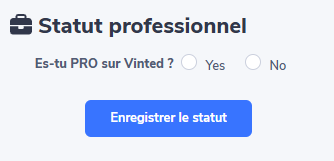
Once you've done that, you can synchronise your sales from clemz.app or from the Clemz extension (which appears when you browse the Vinted website).
From clemz.app
Go to the Tracking page of Clemz's "Sales" module by clicking on "My sales" then "Tracking" (link here). This page may offer you two buttons to synchronise your sales.
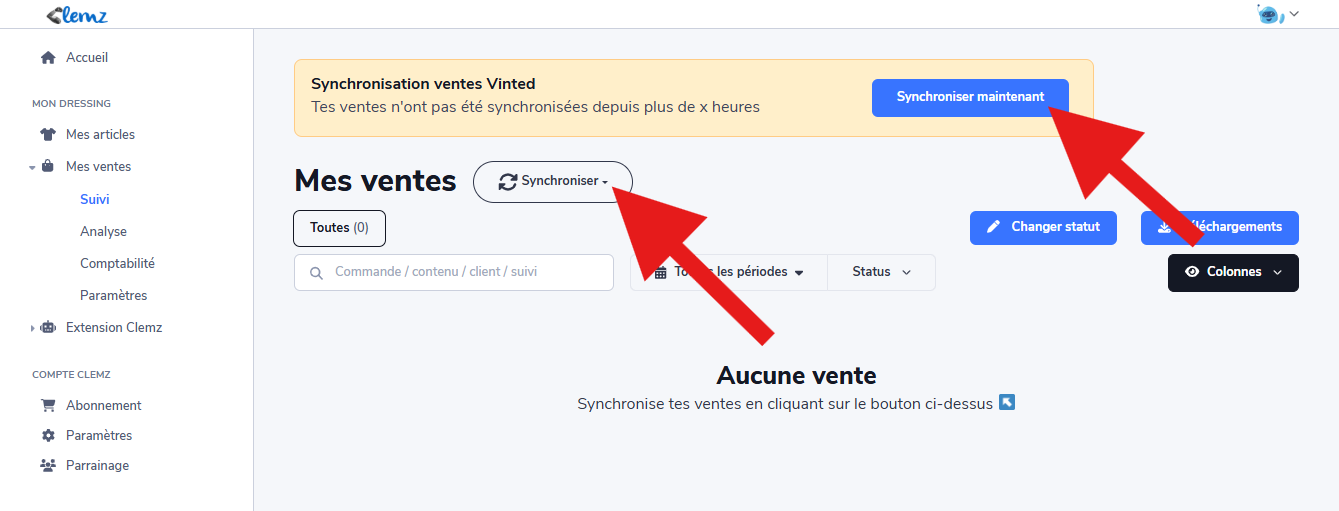
The "Vinted sales synchronisation" banner appears when the last synchronisation was a few hours ago. This number of hours (and therefore the frequency of the banner) can be set in the "synchronisation frequency" field in your Sales settings > Automations.
The Synchronisebutton allows you to launch a more "personalised" synchronisation at any time:
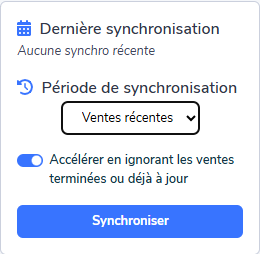
After a few weeks, Vinted removes access to certain information about your past sales from your account:
To avoid losing them, we recommend synchronising your sales every day or, at the very least, once a week.
By synchronising daily, you can track your shipments on a day-to-day basis, print your shipping labels, access up-to-date analytics and, above all, benefit from the automations linked to synchronisation (see).
Go to the Tracking page, where you will find a table listing all your sales so you can manage them efficiently.
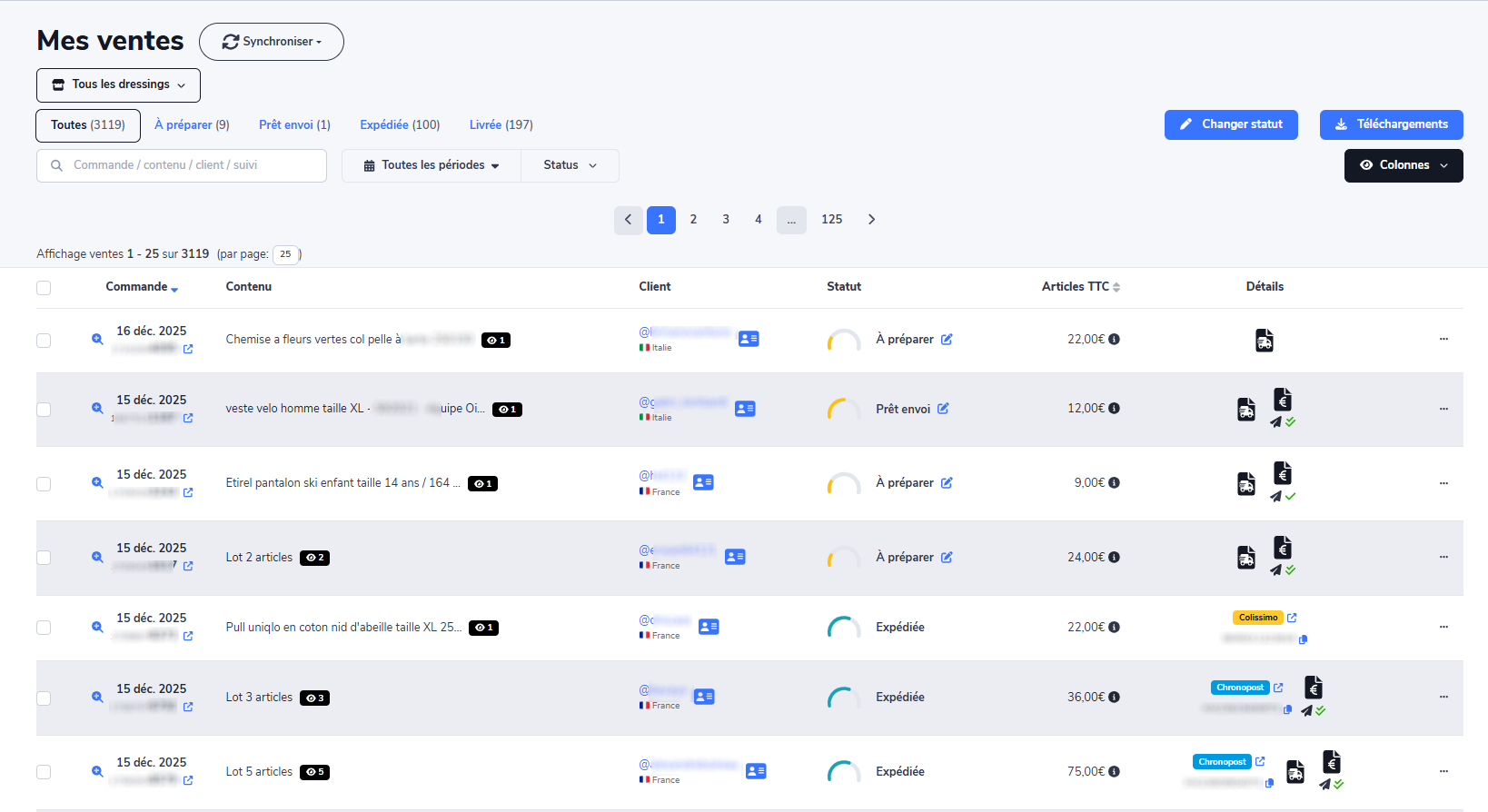
Quick example: preparing your sales
Use the quick links (at the top left, next to "All") to display only " To be prepared " sales. Then, print all the shipping labels at once (see here). Once the parcels are ready, you can change their status to " ready to ship ":
Track all your sales
The tracking table is a comprehensive tool that allows you to see the status of any sale in a matter of seconds:
Incomplete or unverified sales:
If a sale is missing crucial information for your accounting (price, shipping costs, VAT, etc.), the " " alert will appear.
If the final amounts calculated by Clemz differ from those listed by Vinted at the end of the sale, the alert " " will be displayed.
In both cases, click on the View button to open the sale details and correct the data manually. You can also try restarting the synchronisation to see if Clemz can retrieve the information on Vinted.
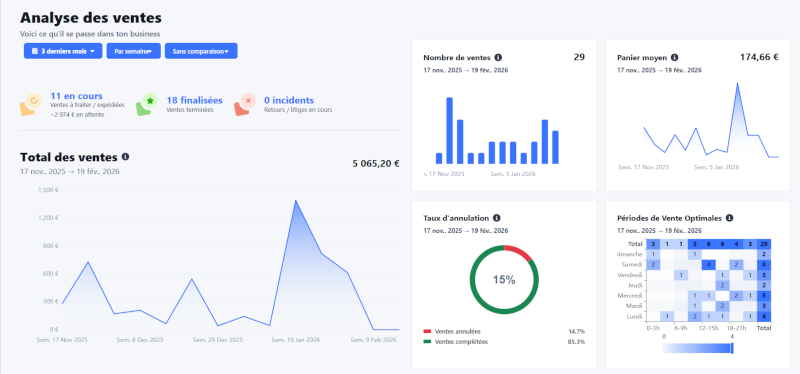
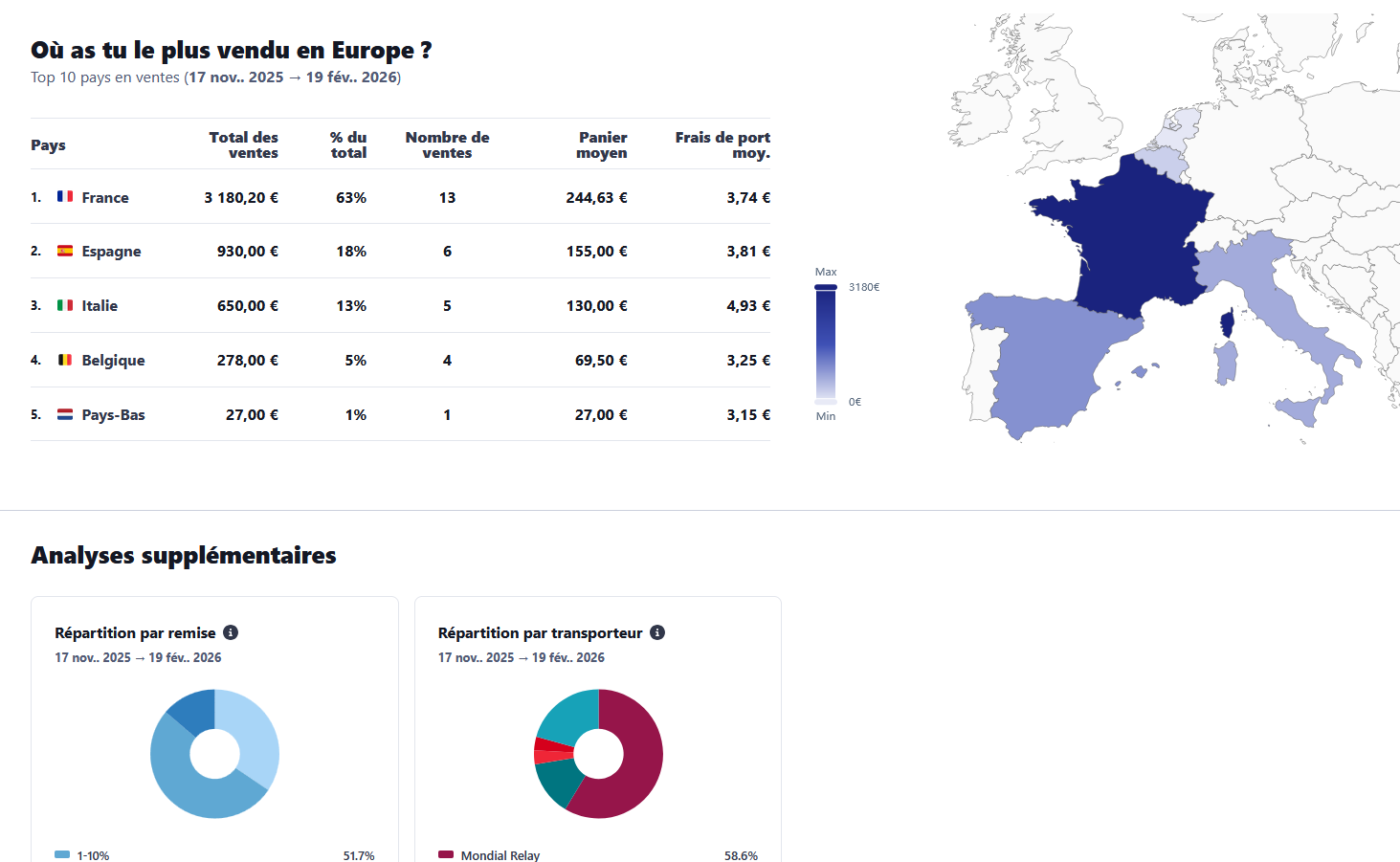
The Analysis page offers you a clear overview of the health of your closet. To take advantage of this, make sure you have synchronised enough sales history.
Clemz offers 4 sales-related automations to save you even more time:
Each automation can be enabled in the sales settings. Message and review automations allow you to configure up to 10 different messages. This way, each time a message is sent, Clemz selects one at random, making your communications more natural and varied.
These automations will be triggered every time sales data is synchronised.
Clemz offers automatic shipping label generation, which can be enabled in your sales settings. Each time sales data is synchronised, Clemz generates any shipping labels that have not yet been issued (except for carriers you do not wish to use: list them by clicking on Carriers to exclude)
Then, when a shipping label is available, Clemz downloads it for you during synchronisation. You can then download your shipping labels combined into a single PDF file: from the Trackingpage, click on the ‘ ’ button , then select the ‘Shipping Labels’ tab.
You can download up to 50 shipping labels at once in a single PDF file. Several magical formats are available:
To make it easier to prepare parcels, Clemz can add the titles of the items sold to each shipping label. No more headaches trying to figure out what to put in which parcel! You have two options:
The page Accounting is a declaration assistance tool that is essential for professional sellers.
Prefer Excel? You can export all your accounting data in CSV format using the " " button Downloads, "CSV" tab on the page Tracking.
The invoice issuance feature is exclusively reserved for closets with PRO status on Vinted.
1. Set up your invoices
Before you can issue invoices, you must configure billing in your Settings > Billing details. The following items can be customised to suit your business:
2. Generate invoices
Once you have configured the settings, you can issue invoices for each sale by going to your Tracking. Go to the line for the sale in question, then in the final menu , click on "Generate invoice".
⚠️ Please note: For an invoice to be generated, the data must be complete. Creation will be blocked if items are missing from the order (e.g. shipping costs not synchronised, lot content unavailable) or if the buyer's information is incomplete (e.g. missing postal address or name). You will then be asked to complete this information manually.
To automate invoice generation, simply enable the option in your Sales Settings > Automations. Automatic generation can be applied to:
To issue invoices for past sales, if manual generation isn’t working, please contact us.
Invoices generated by Clemz can be downloaded from the " " button in the "Invoices" tab on the Tracking.
⚠️For security reasons, we recommend downloading them monthly (at a minimum).
3. Automate invoice sending
In Sales settings > Automations, you can enableautomatic email notifications to be sent to the buyer as soon as an invoice is issued for a sale.
The email sent by Clemz can be customised in terms of the reply-to address and copied emails (CC/BCC). It also reuses the information from your sales settings: company name, website, email and logo.
Here's what it looks like (note that the wording may change slightly, but it will always be a very simple email):
Subject: Invoice [Invoice No.] - [Company name]
Hello,
Following your purchase on [Marketplace] on [date of sale], please find attached your invoice No. [Invoice No.].
Thank you for your purchase.
[Company name]
[Seller's website, if provided]
[Seller's company email, if provided]
[Seller's logo image, if configured]
For each order, Clemz creates or updates a "Customer" file containing all the buyer's information. For each sale (page Trackingpage), you can view this information by clicking on the small icon next to the buyer's username.
You also have a complete customer database, accessible from the Tracking page by clicking on the " Customer " tab at the top of the page. This page contains your entire directory. You can search by name, filter by country, download the complete list in CSV format(via the " " button) , and view each customer's loyalty status:
For PROs, Vinted often provides the buyer's email address for billing purposes. Clemz automatically retrieves it, allowing you to build a real customer database. This is ideal for recontacting your best buyers or managing after-sales service (while always ensuring compliance with consent laws and the GDPR)!
For more information, visit the Vint-aide forum
Is something unclear?