📸 Edit photos
Once configured, Clemz can edit the photos in your listings on its own. This prevents Vinted from identifying your relists. Here, I will describe all the tips you need to do this successfully.
Once configured, Clemz can edit the photos in your listings on its own. This prevents Vinted from identifying your relists. Here, I will describe all the tips you need to do this successfully.
Clemz allows you to edit all the photos in a listing with just a few clicks before relisting them. The main purpose of this feature is to prevent Vinted from recognising your listings between relists and demoting them. But it also allows you to, for example:
The video below gives a quick overview of photo edits and how they work:


Before you can edit your photos with Clemz, you must first save your listing on Clemz.app. If you do not know how to save your listings, read this.
Clemz will always start from your saved photos (= the original, unmodified photos) in order to add your new settings. This means that you can make endless changes without them accumulating on your photos: each time, Clemz starts from the unmodified photo.
The video below explains, visually, how to relist by modifying your photos with Clemz:
To edit your photos, go to the "Relist listings" tab and choose one of the two editing options:

If you choose "On the fly", you can click on " Enter settings " to determine how each photo will be modified. See below.
Vinted has changed its policy on this matter very frequently since Clemz was launched in 2021: sometimes photo edits are mandatory (or you’ll face penalties), sometimes they’re not!
The current situation is as follows (updated in August 2026):
Our advice is to dispute the matter with Vinted when they accuse you of having duplicates that are incorrect, so that they realise their mistake.
Clemz allows you to configure the changes to be made to the photos of your listings. The following options are available:
Each option is explained below with a few visual examples.
Rotate or cropThis is the only option that does not add anything to your photos: it simply allows you to rotate the image a few degrees and crop the edges while maintaining the same height-to-width ratio as the original photo.
Rotation is very effective, and a few degrees are enough to escape Vinted's robots. I recommend testing relisting with a small rotation between -10 and +10 degrees, and always avoiding exceeding -20/20 degrees (photo too rotated).

 2° rotation
 Crop 20%
 Rotation -5°
Clemz allows you to add a frame around your photos:
Colour to apply: Clemz will apply this colour to single-colour frames and templates. You can also use it on your personal frames via the "chosen colour" option. This multiplies the possibilities for frames almost infinitely.
Frame orientation: single-colour frames adapt to the shape of each photo, but not templates, which are a fixed size and in portrait format. The same applies to personal frames. You can also choose to rotate them 90° if your photos are in landscape format: select the "Rotate if photo is landscape" option.
Adding a frame: Clemz has two options for embedding your photos in a frame. Either the photo is fully visible, or it is adjusted to avoid white spaces in the frame.

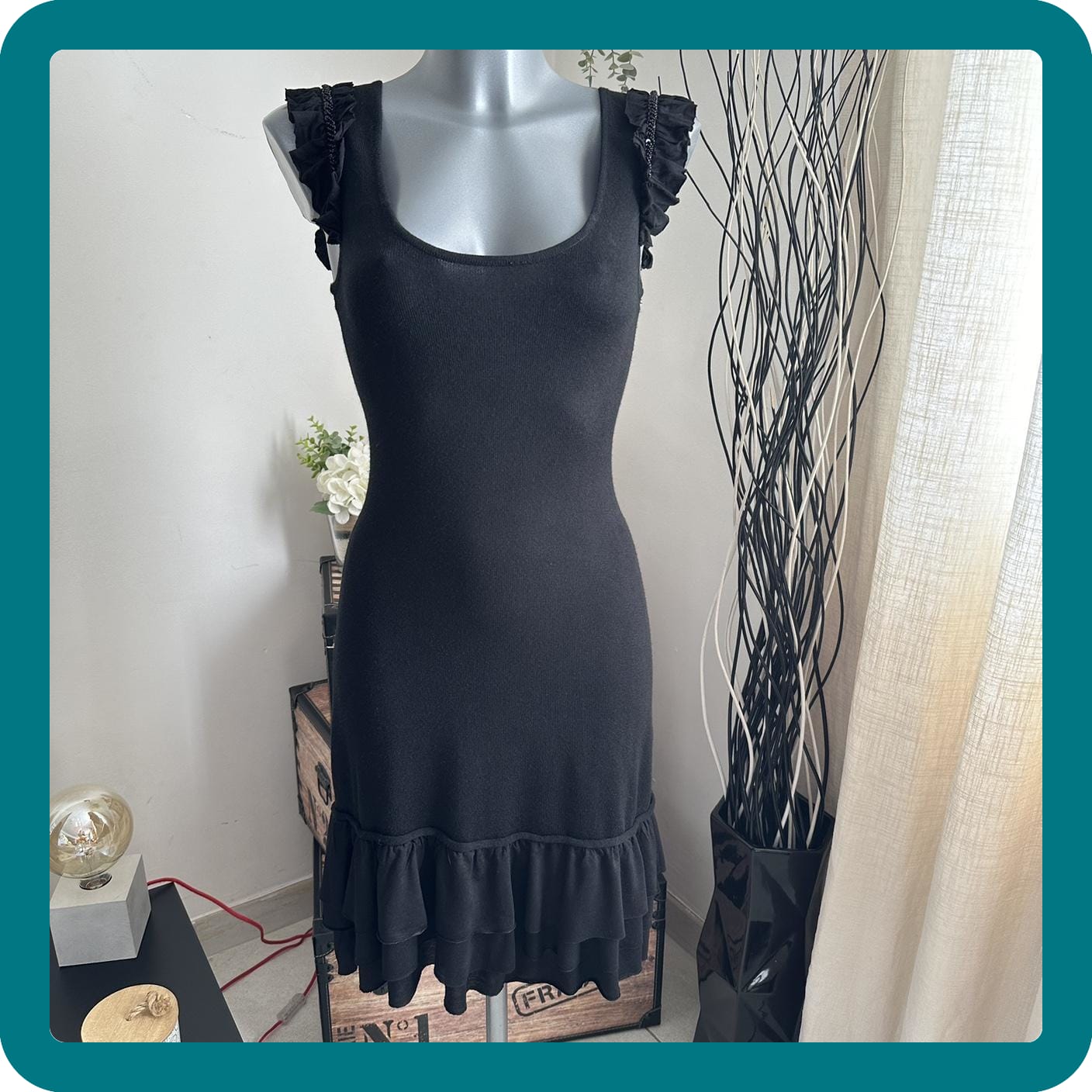 Single colour #007782
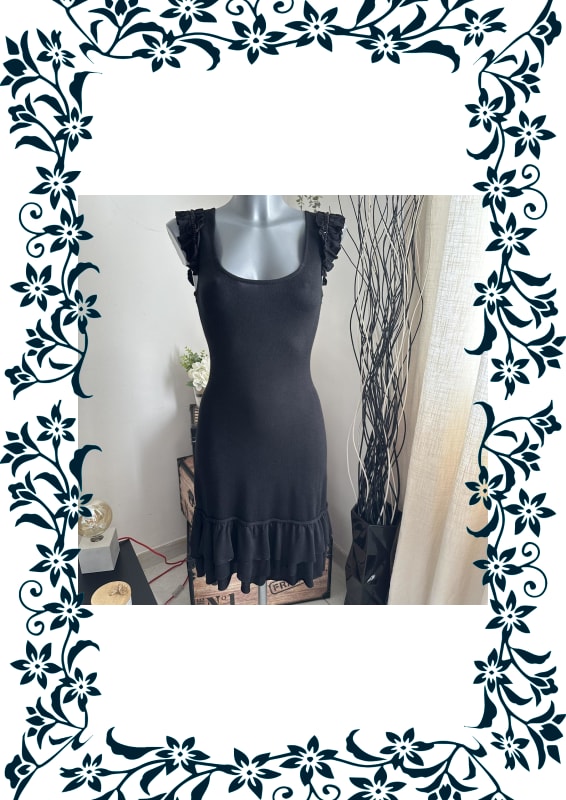 Model "C11_Floral"
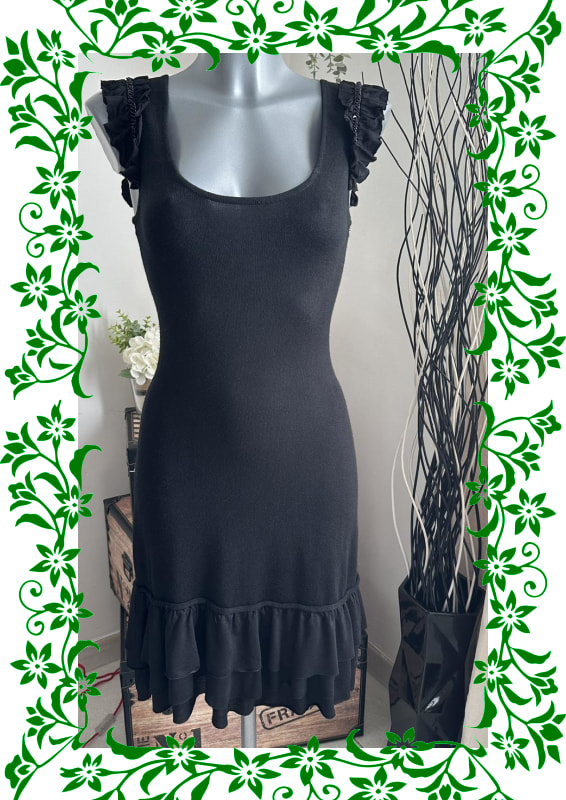 Model "C11_Floral"
This allows you to paste either an emoji or a small personal image (logo or other) onto your photos. To paste an emoji, simply enter the emoji of your choice in the appropriate field. The size, rotation angle and position of the sticker on the photo can be defined.
Personal stickers can be created in your Clemz account settings by clicking here.


 Personal sticker
Clemz allows you to enter the text of your choice while choosing its size, colour, background colour and even font.
A few rules to keep in mind: emojis do not work and line breaks are not automatic (it is up to you to skip a line in the text).
In addition, you can customise the text for each listing by entering the words below (in brackets). The added text will be automatically taken from the Vinted information for each listing:

 Arial, 60% width
 Finger Paint, 60% width
 Parisienne, 80% width
PLEASE NOTE! This only works properly if your photo already has a uniform background (for example, if it has been removed using an app such as PhotoRoom).
This option allows you to change the background colour or replace it with your own background.
Personal backgrounds can be created in your Clemz account settings by clicking here.

 Uniform background #007782
 Personal background
 Personal background
Note: Sometimes, Vinted may disable the identification of relisted items. Please read this short paragraph first to understand why.
When you relist, Vinted compares the photos in the new listing with ALL the photos you have uploaded in the last 6 months. If it finds a similarity with one of the photos in its memory, the listing is then considered "relisted" and may be penalised by the algorithm (lower visibility). Ultimately, the relist will not have been effective...
Changing your photos between relists prevents this identification. But to do so, you need to follow a few relatively simple rules.
Rule 1: changes must be significant
In order to work quickly, Vinted's robots compare photos "roughly": they look at the overall shapes and colours, but do not go into detail. It's a bit like they are comparing photos with their eyes squinted.
You should take advantage of this approximate comparison to make changes that are visible when looking at the photo "overall" and from a slight distance. Examples:


In summary, to increase the chances that the modifications will fool Vinted's robots, they must be very visible (large) and obvious (bright colours that contrast with the background) at first glance at the photo.
Tip: Image rotation works very well, and a few degrees are enough to fool Vinted. Try rotating the image by at least 2 degrees.
Rule 2: change the modification each time you relist the same listing
As I explained, photos are kept for 6 months by Vinted: each time you relist, you will therefore need to completely change the photo modifications. Add a new emoji (if possible, a very different one) in another corner of the photo, change the background colour and position of the text, etc.
To help you avoid making the same modification to a listing twice in a 6-month period:
Tip: rotating photos makes it easy to make different changes. You can make a first relist with a 2-degree rotation, then, on the next one for the same listing, move on to 4 degrees, then 6, etc.
This way, by changing by 2 degrees between -10 degrees and +10 degrees, you can relist the same listing 10 times with a rather discreet change.
Rule 3: Do not be afraid to experiment with your listings
Unfortunately, Vinted's photo identification is not an exact science: for some photos, a minimal change is enough, while for others, you need to make a lot of changes to fool Vinted.
There's no secret to it: test a few things on your listings and find a good combination of editing settings. You won't get it right the first time, but once you do, it's very effective!
Remember that photo edits are reversible: if you do not delete your Clemz backup, you can restore the original photos at any time (although Vinted will recognise them immediately).
Vinted stores six months' worth of photos from your closet. Therefore, to prevent your relists from being identified, you must modify the photos in your listings and, above all, ensure that the modification you make is different from all those made in the last six months.
Of course, it's quite difficult to remember what modifications you've used over the last six months: which frame? Which colour? Which sticker?
Using a modification from the moment will help you avoid applying the same (or almost the same) modifications twice to the same listing within six months.
The video below gives a quick overview of the current changes and how they work:
The principle is simple:
Please note: Clemz cannot compare "on-the-fly" modifications made to a listing. It only alerts you if you try to apply the same modification to the same listing a second time in less than 6 months.
How do I create a "current modification"?Your photo edits can be managed from your settings or more directly via this link. This view contains the button to create a new photo edit and the "" button to select which edit will be the current one.
The various photo editing settings are explained here.
The video below explains, visually, how to create a "moment edit" with Clemz:
A photo edit can be edited or deleted as long as it has never been used via the "" icon located below the edit.
Once used, it can no longer be edited or deleted, as otherwise it would no longer be possible to track photo edits... But you can still archive edits you no longer want to use via the "" button.

When you create a new photo edit, it is usefulto use a photo of a saved listing as a preview rather than the default example dress that Clemz uses. This allows you to clearly see the edits you have made.
Here's how to select the listing to use:

And that's it! Now, when you preview a photo edit, the first photo of that listing will be used as the template.
When an item saved on clemz.app is relisted, Clemz keeps the information in memory. This makes it possible to display an activity history for each saved item.
In your dashboard, go to the "Items" tab (or click here) to view the list of your saved items. Then search for the item you want and click on it to see its details page with a "History" tab listing relists from the last 7 months. For each relist, you will find a preview and details of the photo edits you have applied to the listing (example below).

If the image below is displayed, it means that it is no longer possible to create a preview: you have deleted a frame/background/personal sticker used on this listing and Clemz is no longer able to display what your modification looked like.
Would you like to relist a listing and have Clemz restore the original photo (i.e. the ones saved on clemz.app)? Clemz allows you to do this.
To restore the original photo, select the " Unedited saved photos" option on the "Relist listings" tab.
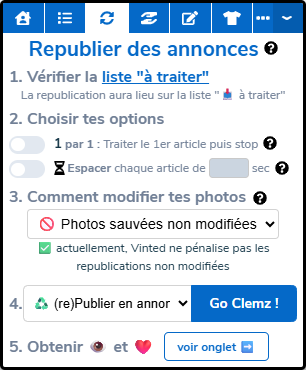
Clemz will therefore use the photos saved on clemz.app without making any changes to them.
Please note: by doing this, you run the risk of Vinted identifying your relist and removing the listing. To find out if Vinted currently penalises unmodified relists, look at the comment below the list of modification options:
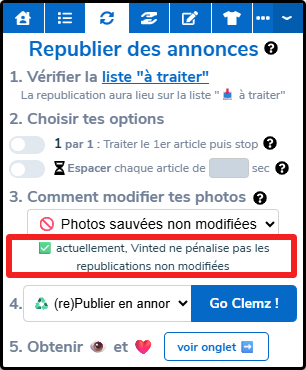
In the example above, Vinted no longer seeks to identify relists: you can use unmodified photos without fear of being penalised!
To add text to your photos, Clemz offers several typefaces or "fonts". These are sorted alphabetically A-Z in the dropdown list to help you choose.

Clemz offers 3 types of fonts to explore:
== "Classic" Fonts ==
Arial

Comic sans MS

Lobster Two

Oleo Script

Playfair Display

Space Mono

== "Handwritten" Fonts ==
Cookie

Pacifico

Parisienne

Rochester

Sacramento

== "Fantasy" Fonts ==
Bungee Inline

Crafty Girls

Finger Paint

Fredericka the Great

Kranky

Permanent Marker

If single-color frames don't suit you, Clemz offers frame models in the "Choose model" option.
They are sorted alphabetically A-Z in the dropdown list by their code. (Example code: S1_winterA, C12_smarties or F11_brush)

⚠️ Important: Clemz will change the main color of the frame to the color chosen under "Main frame color". This allows you to completely customize the frame and avoid multiple people having an exactly identical frame on their closets.
Frame models are sorted into 3 categories:
== "Classic" Frame Models ==


== "Seasonal" Frame Models ==


== "Thin" Frame Models ==


== "Original" Frame Models ==


Something unclear?