📥 Save my listings
Clemz keeps your closet safe outside of Vinted! Save your listings on Clemz in just a few clicks so you can retrieve them no matter what happens.
Clemz keeps your closet safe outside of Vinted! Save your listings on Clemz in just a few clicks so you can retrieve them no matter what happens.
Saving your Vinted listings allows you to have a copy on www.clemz.app ( more specifically on your Clemz dashboard) of all the photos and information about your listings: titles, descriptions, sizes, prices, measurements, etc.
It's always a good idea to have a copy of your listings (including photos) for several reasons:
Ultimately, saving on Clemz is a bit like life insurance for your closet: you no longer depend on the goodwill of Vinted (and its robots).
Clemz provides you with a system for saving your listings. The video below gives a quick overview of photo edits and how they work:
Here are the detailed steps to follow to save your closet:
The first step is to install the Clemz extension on your web browser. If you haven't already done so, please go here to download the extension. Then go to the Vinted website to display the extension at the bottom left of your screen.
Now go to your closet page so that the "My closet" tab is accessible.

Running a backup on your entire closet is time-consuming and unnecessary if it is already partially saved. In the "Which listings to target?" section, you can decide to run the backup on:
In the menu next to "Start!", click on the drop-down menu and select the action "⏫ Save listings". Then click on "Start!".

Before starting the save, Clemz suggests that you do not save ALL targeted listings (= your entire closet OR your list to be processed OR your items from No. X to No. Y). The idea is to allow you to work faster by avoiding sending items that have already been saved a second time.
To speed up the process, Clemz suggests that you limit yourself to listings that have never been saved, so that you don't have to go back over listings that have already been saved.

If you send allthe listings, Clemz will also want to know which photos to keep between the Vinted photos and those already on clemz.app

Choose the appropriate action depending on whether the correct photos are those already on clemz.app or those on Vinted
When you save listings on Clemz, the system follows a few basic rules:
It all depends on how often you add or modify your listings. If you never add new listings and never modify them, an initial backup will suffice.
Overall, it is advisable to:
It's best to check your backup from time to time to make sure it matches what you have on Vinted.
Your Clemz backup has many uses (see menu above), which I will explain below:
Manage listings on ClemzAll your saved listings are accessible on your Clemz dashboard.
From there, you can:
👉 Read more about this feature here.
When you relist with the Clemz extension, you can edit the photos in a listing. Clemz will then make automatic changes (which you choose) based on the photos saved from your listings. This means that changes can be made indefinitely, as it always starts from the original photos saved.
Replace the original photos👉 Read more about this feature here.
From the Clemz extension, you can re-import all the photos saved from a listing. The aim is, for example, to remove changes or restore photos to a listing that has lost them. This feature is available on the "Edit my listings" tab.
If a listing has been lost from your Vinted closet or if your entire closet has been banned, you can use the Clemz backup to send complete listings from clemz.app to Vinted.
The video below gives a quick overview of how to do this:
Step 1: go to your Clemz backup
Your save is available at www.clemz.app/dashboard/items. You can then display the Clemz extension by activating the "Show extension" button.
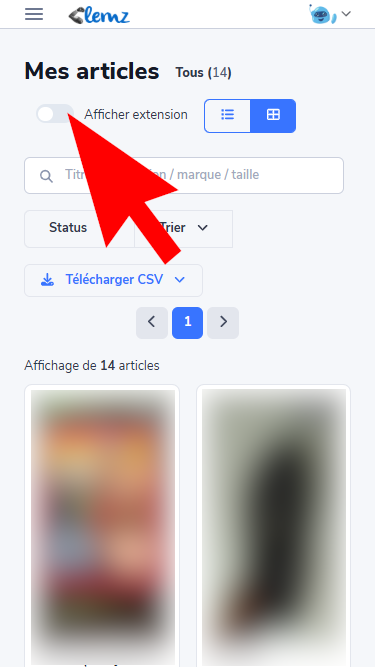
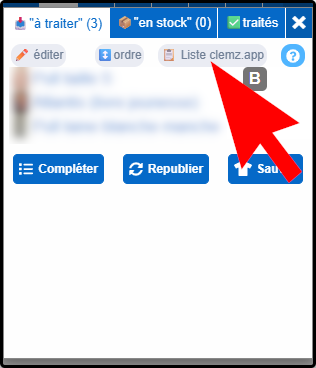
The Clemz extension will then appear at the bottom left:

Step 2: display the listings to import
Using filters and sorting, find the saved listings you want to import to Vinted and display them in view to add them to your Clemz lists.
Step 3: add the listings to your list
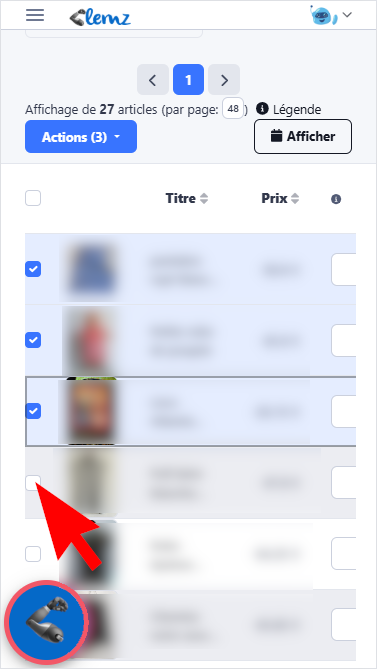
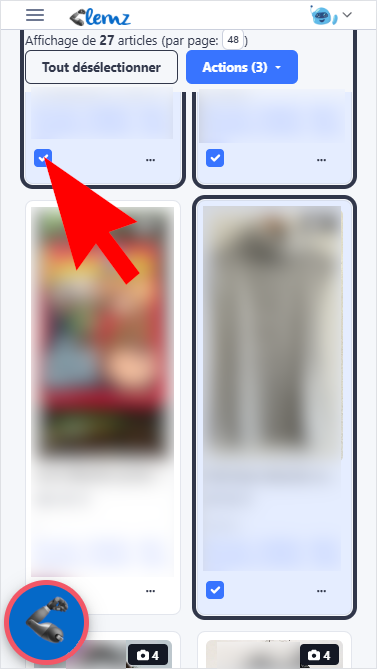
Step 4: Import to Vinted
You now have two options for importing your clemz.app items from the "to-do" list to Vinted:
Option 1: Relist
Simply relist the item from the Vinted website to have the saved items created in your closet. Full instructions on how to relist on Vinted are available here.
Before importing the listing into the closet, Clemz carries out a quick check to avoid duplicates. So, if this listing had been identified as “present on Vinted” by Clemz, it will then check that this Vinted listing no longer exists. If it still exists, Clemz will cancel the import from the “to-do” list and replace it with the Vinted listing so that it can be relisted normally: otherwise, Vinted might identify a duplicate.
If you still wish to create a duplicate, the best approach is to duplicate this listing on clemz.app (click on the item’s menu from your Backup – a ‘duplicate’ option allows you to do this) and then import this duplicate. As this has never been published on Vinted, Clemz’s verification system won’t detect an existing listing, and you’ll be able to have two identical items in your closet (at your own risk 😎).
Option 2: use Autocomplete
Another way to import items from clemz.app (listed in the "to-do" list – see above) into your closet is to let Clemz fill in the form to create a new listing based on the saved item. To do this:
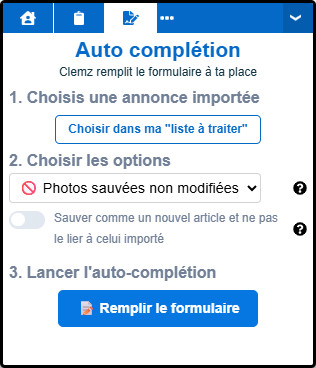
When you save or submit the form, Clemz will update your Backup accordingly
Clemz lets you create lists of items so you can easily find them again later. This is very useful, for example, if you want to delete lots of listings from Vinted and then re-import them later: simply make a list of them before deleting them so you can find them again later!
Your clemz.app lists are visible under ‘My Items – Lists’ and can be created:
When you use it, Clemz remembers which item on Vinted corresponds to an item saved on clemz.app. This "link" is retained when you relist with Clemz: it knows that the old Vinted listing has been deleted and that a new (identical) one has been created.
It is important that Clemz can keep this "link", which is "knowing which saved listing corresponds to which item in your Vinted closet", in order to:
To check that Clemz has matched your saved listing with its equivalent in your Vinted closet, simply:
Sometimes the link can be lost => for a saved listing, Clemz no longer knows which listing in your Vinted closet it corresponds to. This is particularly the case if you relist other than via Clemz.
Here's how to restore this "link":
Happy sales with Clemz!
Is something unclear?