Back to top

♻️ Relist listings

Relisting your Vinted listings with Clemz increases traffic to your closet and therefore boosts your sales 🚀

Table of contents

Why relist your Vinted listings?

The Vinted algorithm favours recently created listings by displaying them first in search results and in the home feed/news feed of each Vinted user.

Relisting a listing involves creating a new listing by copying the information from an old listing exactly (same photos, title, description, etc.) and then deleting the old listing to avoid a duplicate.

By relisting a listing that is a few weeks old, you increase your chances of it being seen by a potential buyer. This is simply because the listing will appear first in their search results and news feed.

In addition, visitors who click on your relisted listings will usually browse the rest of your closet. All of this makes relisting a very common practice among experienced Vinted sellers.

But relisting should not be done haphazardly! First of all, because there are tips for optimising the impact of your relists. But also because Vinted's algorithm is watching! It doesn't let people relist haphazardly...

The video below gives a quick overview of relist and how it works:

How can I effectively relist on Vinted?

Now that you know you need to relist your listings, you may have lots of questions: how often should you relist? When? Will Vinted prevent you from relisting whenever you want?

Here are the three rules I suggest you follow:

  1. Try to relist at least one listing from your closet every day. This will force you to spread out your relists rather than relisting everything on the same day. As there is a constant flow of buyers on Vinted, this will increase the number of people likely to come across one of your listings and take a look at the rest of your closet!
  2. Each listing should be relisted (ideally) between once a week and once a month. Relisting more often can be counterproductive: you lose favorites, you spam your subscriptions too much, and buyers have little time to make their decision. Conversely, relisting less than once a month places your listings too low in search results and news feeds: after a month, they will almost never be viewed.
  3. Relist during Vinted's peak hours: 6am-8am, 12pm-1pm, 7pm-9pm and on weekends. These are the times when the site is busiest, and Vinted prioritises listings that are less than a few hours old. So relist when the chances of being viewed are highest!
💡Did you know?
Clemz relists your listings using your saved photos (read here), so there’s no risk of the photos becoming damaged after multiple relists.
Clemz also lets you edit your photos (read here) so that Vinted doesn’t recognise them: perfect for tricking the algorithm.

How can you trick the Vinted algorithm?

Vinted isn’t particularly keen on relists as they trick their algorithm into thinking a listing is new. They try to discourage relists using two mechanisms:

  1. By reducing the visibility of relists when they are detected.
  2. By restricting certain accounts when they detect ‘automated activity’. This restriction blocks the ability to create new listings for 24 hours.

We explain how to get round these two issues below!

1) Boost the visibility of your relists

Vinted generally has two ways of detecting relists (manual or automated) in order to penalise them in terms of visibility. Clemz offers an automated solution for each:

  1. Similar photos: Vinted compares photos of items (even deleted ones) with those of your relisted items. This article explains how to automatically edit your photos using Clemz to prevent them from being recognised.
  2. An item deleted and immediately relisted: Vinted detects if an item disappears from your closet and another reappears straight away in its place. Try deleting lots of items on a given day and then re-importing them gradually via Clemz to get round this. This is done in several steps:
    1. Delete your items in bulk from Vinted whilst adding them to a clemz.app list using the dedicated option (read here)
    2. Then all you need to do is re-list them bit by bit via Clemz (read here). This way, Vinted can no longer easily link the act of deleting a listing with its relisting.

2) Prevent Vinted from restricting you

💡Did you say restrictions?

Some additional information:

  • These restrictions only last 24 hours and do not result in an account being blocked
  • They seem partly random, as many accounts are restricted when carrying out manual actions
  • Vinted PRO accounts appear to be unaffected

We recommend enabling Clemz’s “Protection” options in the Relist tab.
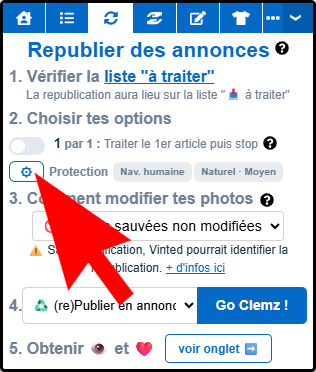
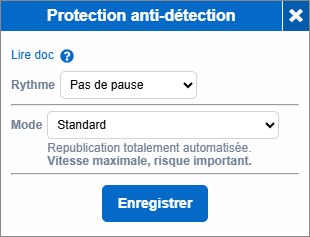
There are two types of options: Pace and Mode. Pace allows you to slow down Clemz’s speed and space out relists. Mode, on the other hand, lets you choose between high speed (maximum automation) or high security (manual steps to be carried out): details are available here
However, it’s important to note that this does not provide 100% protection against restrictions, as Vinted also checks whether the volume of relists appears ‘abnormal’. Vinted will assess whether you’re relisting automatically by taking into account the number of items in your closet, the number of items deleted in recent days, and the number of items created recently.

If it detects an inconsistency (e.g. a quarter of the closet is deleted every week / more than 30 listings are created every day / etc.), it will restrict the account even if it has no formal proof of automation.

In summary, to minimise your risk of restrictions:

  • Use Clemz’s natural pacingprotection options (slow or very slow) as well as the human-like browsing and Manual validation modes.
  • Limit your relists. For example, to a maximum of 20–30 per day (for a medium-sized closet. PRO users and those with large closets can probably go higher). Test this by gradually increasing the volume each day.

How does Clemz work for relisting?

Clemz allows you to relist each listing in a matter of seconds, without errors and, most importantly, without triggering the Vinted algorithm that limits relists to once every six months for each listing!

To use it, you need to have the Clemz extension installed on your browser (Chrome, Quetta or Orion). If you haven’t done so yet, read the quick start item.

The video below explains, visually, how to relist with the Clemz extension from your browser:

Step 1: add listings to the "to be processed" list

  1. From the browser where Clemz is installed, go to your Vinted closet page
  2. On Clemz (bottom left), go to the "Fill my lists" tab and click on Start selection
  3. Select the listings you want to relist from your closet and click on "Add".
  4. The listings have now been added to the "to be processed" list, as you can see from the list that appears
Did you know?
Clemz also has a 'in stock' list that allows you to set aside listings for later relist. You can easily move listings from the 'to be processed' list to the 'in stock' list. This allows you to add several listings to the lists at once without having to go back to your closet to find them each time.

Step 2: enter the options

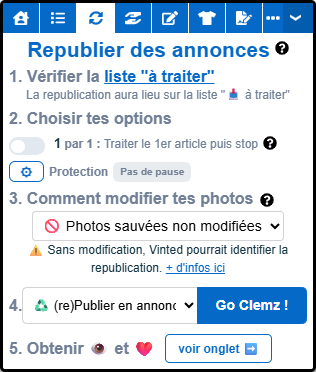
  1. Now, on Clemz, go to the“Relist listings” tab
  2. You can check the list one last time by clicking on “List to process”. All the items it contains will be relisted.
  3. Enable the relist settings to suit your needs: one-by-one relist or options to protect against Vinted’s detection system (details on each option available here).

Step 3: Choose how to edit your photos

Clemz will use your saved photos and modify them itself. This will change the appearance of the photos in your listings by adding a frame, an emoji, text, changing the background, etc. This is ideal for ensuring that Vinted does not identify your relists.

Also, by starting with an original photo each time you do a relist, your photos will not deteriorate with each relist (Vinted compresses them each time).

By clicking on Photo Editing, Clemz offers you numerous editing options to more easily fool Vinted and make your photos look new: read here how to edit your photos properly.

Step 4: Start relisting

  1. Choose the type of relist you want: "Relist listings", "Listing → Draft" or "Draft → Listing" (details on each type available here).
  2. Click on Go Clemz!

Now just let Clemz do its work. Remember to check your closet once Clemz has finished.

What are Clemz's relist settings?

Clemz offers various relist settings:

1 by 1: force Clemz to process only the first item on the "to-do" list and then stop. This allows you, for example, to check Clemz’s work after each relist.

Protection options: to protect yourself against being detected by Vinted (read here), Clemz offers options that you can configure by clicking on ⚙

  • Frequency: select the intervals between your relists. The more you space out your relists, the less likely Vinted is to detect you.
    • Simple spacing: Clemz waits for the specified number of seconds
    • Natural pacing: Clemz varies the pauses and adds extra ones within the relist. All to make it look as human as possible. Select an existing speed (medium, slow, very slow) or set your own.
  • Mode: There are 3 modes to allow you to choose between speed and protection. To find out more about the risks of being detected by Vinted, read this
    • Standard: Clemz’s original mode, where relists are automated as much as possible.
      Very fast but potentially detectable by Vinted.
    • Human-like browsing: Clemz opens Vinted pages and interacts with them, but takes more pauses.
      Slow speed but a reduced risk of detection
    • Manual validation: Clemz works on items one by one, deleting them and then completing the creation form for you. However, the final verification and validation step must be carried out by you to further prevent Vinted from detecting 100% automated behaviour.
      Very slow but with a minimal risk of detection.

The different types of Clemz relists

Clemz offers two types of relists:

  • (Re)publish as an ad: Clemz copies listings or drafts, deletes them, and then publishes the copies as if they were new listings.
  • Save as Draft: Clemz converts listings into drafts. This is useful for putting an item aside for a while (Vinted does not monitor drafts).

How do I edit my photos when relisting?

➡️ Please click here ⬅️ I have written a comprehensive guide that explains everything in detail: how to let Clemz edit your photos, what editing options are available, etc.

How can I bypass Vinted captchas?

Sometimes Vinted blocks your relists by asking for a captcha to verify that you are not a robot.

Reduce the number of captchas

Here are a few tips to stop being harassed by Vinted captchas:

  • As soon as Clemz displays a captcha, hurry up and solve it: Vinted will store the information that you are a real human in your cookies.
  • Avoid relists of more than 60 listings. The longer the list, the more likely Vinted is to stop you with a captcha.
  • Space out your items by 20-30 seconds when relisting. Just use Clemz's " " option.
  • Relist in several sessions: rather than relisting 100 items at once, do two sessions of 50 relists over the course of a day, spacing them a few hours apart. What's more, this is more effective for visibility on Vinted!

Unlock Clemz by solving captchas

When a captcha blocks Clemz, it will display it directly to you and you simply need to solve it for Clemz to continue its work. Vinted will then remember (via your cookies) that your browser is controlled by a human, not a robot => Clemz should no longer be blocked again.

If Vinted ever blocks your browsing with a message, don't panic: it's only temporary! Clear your Chrome cookies or switch to private browsing to unblock yourself.

If necessary, you can also trigger a captcha to prove that you are human:

  1. Create a draft Vinted listing using the "Sell your items" button. A minimal draft is sufficient: just a listing title
  2. Then edit this draft by going to the listing and clicking "Edit"
  3. When you click on "Save this draft" (step 1) or "Confirm" the listing change (step 2), Vinted will ask you to solve a captcha.
  4. Solve the captcha and that's it! You can relist again with Clemz. Vinted will have confirmed that you are indeed human.

I'm not selling much despite Clemz's relists. Why?

It is important to remember that Vinted is unfortunately not an exact science... Sometimes there are periods of intense sales and sometimes there are slow periods.

Many factors influence sales. Some you can control (item type, price, photo quality, visibility of your listings, etc.) and others that are beyond the control of all Vinties (traffic on Vinted, algorithm choices, luck in finding the right customer, etc.).

Clemz cannot guarantee 100% of purchases. The only certainty is that by relisting, you will sell as much or more than if you did nothing. It seems obvious, but it is important to remember: you will never sell less by increasing the visibility of your closet.

If you're experiencing a slow period, don't jump to conclusions based on a few days or 1-2 weeks: you need to look at the long term. Persevere for a while and after a month of regular relists, you should see a clearer picture.

And above all, remember to follow the relisting advice I give here.

What is an "incomplete" item? (🌓 icon on Clemz)

If an item appears in your Clemz to-do lists with the 🌓 icon, it means the item is incomplete. This means that Clemz has not managed to retrieve 100% of the item’s details: it has the photos and most of the fields (e.g. price, description, title) but some are missing (e.g. size, parcel size, measurements, etc.).

This just means that the information in the list is incomplete, not the Vinted listing itself. Why? This is a restriction that Clemz encounters on two types of listings:

  • Sold items: it is advisable to save your items BEFORE they are sold so that you can put them back on sale via import from clemz.app (everything is explained here)
  • Recently modified or posted items: these items are in "hidden" or "processing" status, and you just need to wait a little while for these items to be retrieved normally by Clemz.

Incomplete listings in your list to be processed may:

  1. Be removed from Vinted via Clemz through bulk editing
  2. Be saved: but Clemz will only save the information it has been able to retrieve from the listing
  3. Be imported from clemz.app if it has been saved previously: when you launch the relist, Clemz will offer to search for it for you in your backup

However, it is impossible to modify them or to relist them without importing them from clemz.app. This is because Clemz does not have all the information necessary to perform these actions.

Find out more

For more information, visit the Vint-aide forum or watch this video on the Clemz YouTube channel:


Is something unclear?

Ask for clarification