💌 Messages to favorites
Discover how Clemz can automatically send messages to Vinties who leave you favorites
Discover how Clemz can automatically send messages to Vinties who leave you favorites
When a Vintie puts one of your listings in her favorites, it means she is (presumably) very interested.
She wants to either save this listing to buy it later or let you know that she is interested so that you can give her a small discount.
In both cases, by quickly sending them a message and even an offer for a reduced price, you increase your chances of selling the listing.
The decision to buy is often spontaneous, made on a whim or at first sight. To trigger the purchase, take advantage of the fact that the Vintie has recently viewed and liked your listing. Strike while the iron is hot!
The video below gives a quick overview of how it works and the options available for sending messages to your favorites:
The "Messages to favorites" feature allows you to let Clemz scan your received favorites so that it can automatically send a potential buyer a text chosen at random from your message templates and, if applicable, a discount offer on the item.
Clemz will first respond to your existing favorites: to speed up this process, there are options to skip these existing favorites or to read only the most recent ones (just those from the last few days).
Next, Clemz will check every 3 minutes to see if a new favorite has been received and will send a message to the relevant Vinties if the conditions are met.
This feature can be used alongside automatic messages. Clemz will then intelligently switch between the two features to minimise response times for favorites and messages.
When Clemz finds a favorite in your notifications, it will follow the rules below before sending an automatic message:
There are several ways to follow what Clemz is doing with favorite messages:

The Clemz tab for sending messages to favorites can be accessed by going to the "messaging" page on Vinted.
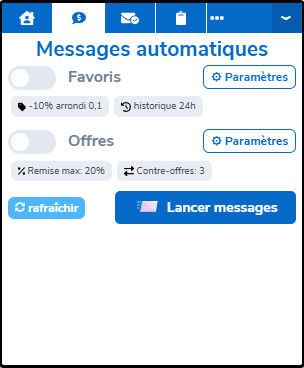
The ⚙ Settings button allows you to configure the options for this feature. You can also go via the Clemz Dashboard:
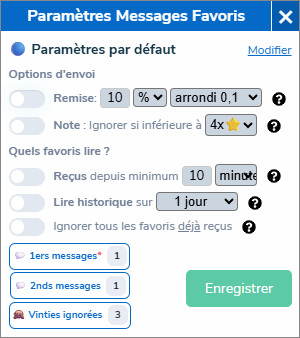
If you have multiple closets, Clemz applies the same settings to all of them by default. But you can also create a specific configuration for each closet: different messages, different discounts, different options, etc.
On the Clemz Dashboard, select a closet from the drop-down menu to see whether it is using the default configuration or a custom configuration. The Clemz extension shows you the active configuration with a colour indicator: 🔵 default, 🟣 custom.
The only mandatory setting: write the messages you want Clemz to send automatically. By clicking the 💬 First messages button, you’ll be redirected to clemz.app to enter your template messages.
The "first message" will be sent if a Vintie adds you to their favorites. The "second message" will be sent if they add you to their favorites a second time within 24 hours, unless you leave this second message blank. There is no third message template as Clemz does not send more than two messages to the same Vintie within 24 hours.
Example:
You can set up to 10 message "templates" at a time to reduce the risk of sending the same message to the same buyer. Clemz also tries to avoid sending the same template twice to the same person (on two different days): this makes it feel less "robotic" and more natural.
By clicking on 🙈 Ignored Vinties, you can add the names of Vinties you do not want to contact, even if they add you to their favorite.
This allows you, for example, to avoid spamming your subscribers or members of your boost group.
These options allow you to adjust how you will contact a potential buyer when all the rules for sending a message have been met.
You have two options available:
These options concern the choice of favorites to read or not. Unread favorites will simply be ignored and will not be recorded as "processed" in Clemz's memory. This means that if you change the options later, you can ask Clemz to read them again.
You have three options available:
Messages to favorites are ready to be sent: simply tick the "Favorites" box in the Clemz tab and start the process.
Clemz will fetch your favorites, read them, contact Vinties when relevant, etc. In the meantime, you can go for a run, do some gardening or prepare for tomorrow morning’s biology test 🦾
In mid-2025, Vinted introduced a restriction on reading favorite notifications. This restriction applies to all users and therefore to the Clemz extension: in short, it prevents you from contacting more than 20 favorites every 1 to 2 hours.
As a result, Clemz will pause (or delay) every 20 favorite read to avoid being blocked by Vinted.
The restriction can be viewed from your Vinted closet as it affects all users, even in manual mode:
Limiting messages to one every four minutes is ridiculously slow. Especially when you have a large account and messages to favorites significantly increase sales.
We need to collectively protest to Vinted and push them to change this ridiculous setting.
Contact Vinted and explain that when you send messages manually, you encounter a bug that prevents notifications from opening after 20 clicks (see the test I described above).
It is not in their interest to reduce your sales too much. Limiting you to 1 or 2 messages per minute, for example, would be reasonable.
If the restriction continues over time, here are a few simple tips to optimise your messaging to your favorites:
Sometimes, when you send messages, Vinted may suspect a bot and send a captcha to be solved. In this case, Clemz will display the captcha and may play a sound alert to notify you.
To hear this alert, you need to follow these steps:


Is something unclear?