✍️ Bulk edit
Clemz allows you to modify a group of listings in just a few clicks: hide/unhide, change prices, restore saved photos or even delete everything
Clemz allows you to modify a group of listings in just a few clicks: hide/unhide, change prices, restore saved photos or even delete everything
Managing your listings one by one can be VERY tedious. Clemz saves you time by applying the same change to multiple listings. Here are the changes you can make via Clemz and some examples of how to use them:
The video below gives a quick overview of bulk editing and how it works:
Clemz allows you to edit a list of listings from your closet. You need to create the list, configure the changes, and then launch it. Here's how to do it:
The first step is to install the Clemz extension on your web browser. If you haven't already done so, please go here to get the extension. Then go to the Vinted website to display the extension at the bottom left of your screen.
Now go to the Vinted page of your closet so that the Clemz tab "Edit listings" is accessible.

1. Create your "to do" list
The changes will be made to all listings in your "to be processed" list. To check the contents, click on the "to be processed list" shortcut at the top of the tab.
If the list needs to be completed, display your Vinted closet page, then go to the "Fill in my lists" tab and click on Start selection.

Select the listings you want to edit from your closet and click on + add
The listings have now been added to the "to be processed" list, as you can see from the list that appears 👍
2. Enter your editing options
Once you have your list of listings to edit, choose your editing options.
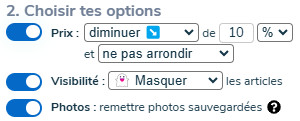
Activate or deactivate the ones you want using the button on the left. Fill in the criteria on the right (price change value, hide/unhide, etc.).
If you wish to delete listings, these options will not be taken into account: you can ignore them.
3. Start editing
All you have to do now is start editing by clicking on ✍️ Edit listings
Clemz allows you to quickly delete a list of listings from your closet. All you have to do is create the list and then start the deletion process. Here's how to do it:
The first step is to install the Clemz extension on your web browser. If you haven't already done so, please go here to get the extension. Then go to the Vinted website to display the extension at the bottom left of your screen.
Now go to the Vinted page of your closet so that the Clemz tab "Edit listings" is accessible.
1. Create your "to do" list
All listings in your "to do" list will be deleted. To check the contents, click on the "to do list" shortcut at the top of the tab.
If the list needs to be completed, display your Vinted closet page, then go to the "Fill in my lists" tab and click on Start selection.
Select the listings you want to delete from your closet and click on + add
The listings have now been added to the 'to be processed' list, as you can see from the list that appears 👍
2. Start the deletion process
All you have to do now is start the deletion process by clicking on 💣 Delete listings. And that's it!
Clemz allows you to automatically retrieve photos from a listing saved on Clemz.app (see how saving works: here) in order to put them back on the Vinted listing.
This is very useful when relisting causes you to lose photos (a rare bug) or if your photos are too degraded by numerous relists.
Here's how to do it:
1. Put the listing in your "to do" list
To check the contents of the "to be processed" list, click on the "to be processed list" shortcut at the top of the "Edit listings" tab.
If the listing in question is not there, display your Vinted closet page, go to the "Fill my lists" tab and click on Start selection.
Select the item in question from your closet and click on + add
The listing will be added to the "to be processed" list, as you can see from the list that appears 👍
2. Select the correct editing option
Once you have your list of listings to edit, select the option "Photos: restore saved photos".
3. Start editing
All you have to do now is start editing by clicking on ✍️ Edit listings
Clemz will then search clemz.app for the corresponding saved listing and use the photos to put them back on the Vinted listing.
If Clemz tells you that it cannot find a saved listing that matches your Vinted listing, and you are sure that you saved this listing previously, it means that Clemz has "lost the link" between the two versions of your listing: the one on Vinted and the one saved on Clemz.app. Read here how you can restore this link
Is something unclear?